

Note: To edit the number or date and time format for this visual, see Configure Number Formatting for Visuals and Configure Date and Time Formatting for Visuals.
Configure Colors for a Specific Floating Bubbles Chart
Specify the color settings for a specific floating bubbles chart using the Color sidebar- Edit the visual you want to modify. See Edit Visuals.
- If you are editing the visual in a dashboard, select Settings from the visual drop-down menu. The sidebar menu for the visual appears. If you are editing the visual from the Visual Gallery, the sidebar appears to the right of the visual.
 on the sidebar menu. The Color sidebar for the visual appears.
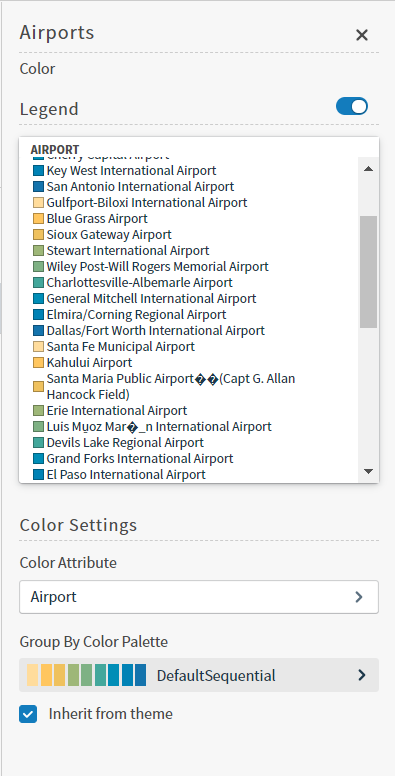
- Configure the color settings as described below. As you change the color settings, the legend at the top of the Color sidebar shows how the legend will appear on the visual. Supported color specifications are described in Specify Colors.
| Setting | Description |
|---|---|
| Legend | Enable or disable to display a dynamic legend in this visual. Dynamic legends allow you to temporarily add or remove data shown in the visual.
If available, enable or disable a static legend for this visual. |
| Color Attribute | Select the attribute that affects the segment color in the visual. |
| Group By Color Palette | Select a color palette for this specific visual. Select the Inherit from theme: checkbox to use the color palette specified by the theme. |
- Select
 to save the dashboard and the visual with its updated settings.