

Note: If you have the Administer Initial Visuals privilege, you can update available visual types as needed.
- Make sure you are logged in as a user with the Administer Initial Visuals privilege.
- Select the Sources option from the Tools menu in the main menu. The Sources page appears.
-
On the Sources page, locate a data source configuration to edit, and select the more menu (
 ) button.
- Select Available Visual Types. The Available Visual Types work area for this source opens.

- Select to enable and disable the visuals you want user to be able to use for this source. All Visual Types are shown by default: select Standard Visual Types or Custom Visual Types to edit those lists only, or use the search field to find a specific visual.
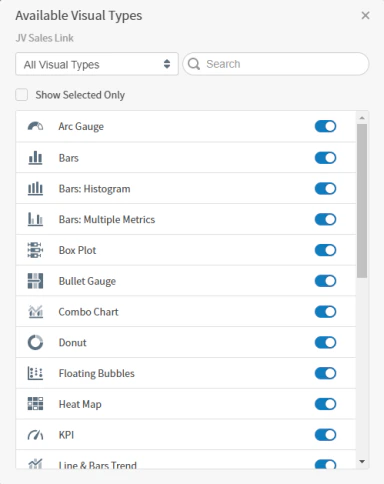
- After completing your changes, close the work area to save your changes for this source. All available data fields are automatically included in these default visual settings.
- Arc Gauges
- Bar Chart Styles (includes standard, histogram, and multiple metric charts)
- Box Plots
- Bullet Gauges
- Combo Charts
- Donut Charts
- Floating Bubble Charts
- Heat Maps
- KPI Charts
- Line Charts (includes line & bar, attribute value, and multiple metric charts)
- Maps (includes marker, US region, and world maps)
- Pie Charts
- Pivot Tables
- Scatter (Bubble) Charts (includes floating bubble, packed bubble, and scatter plot charts)
- Sunburst
- Tables
- Tree Maps
- Waterfall
- Word Clouds