

View the Home Page
Easily access the home page from anywhere in the UI by selecting the Home icon ( ) in the main menu.
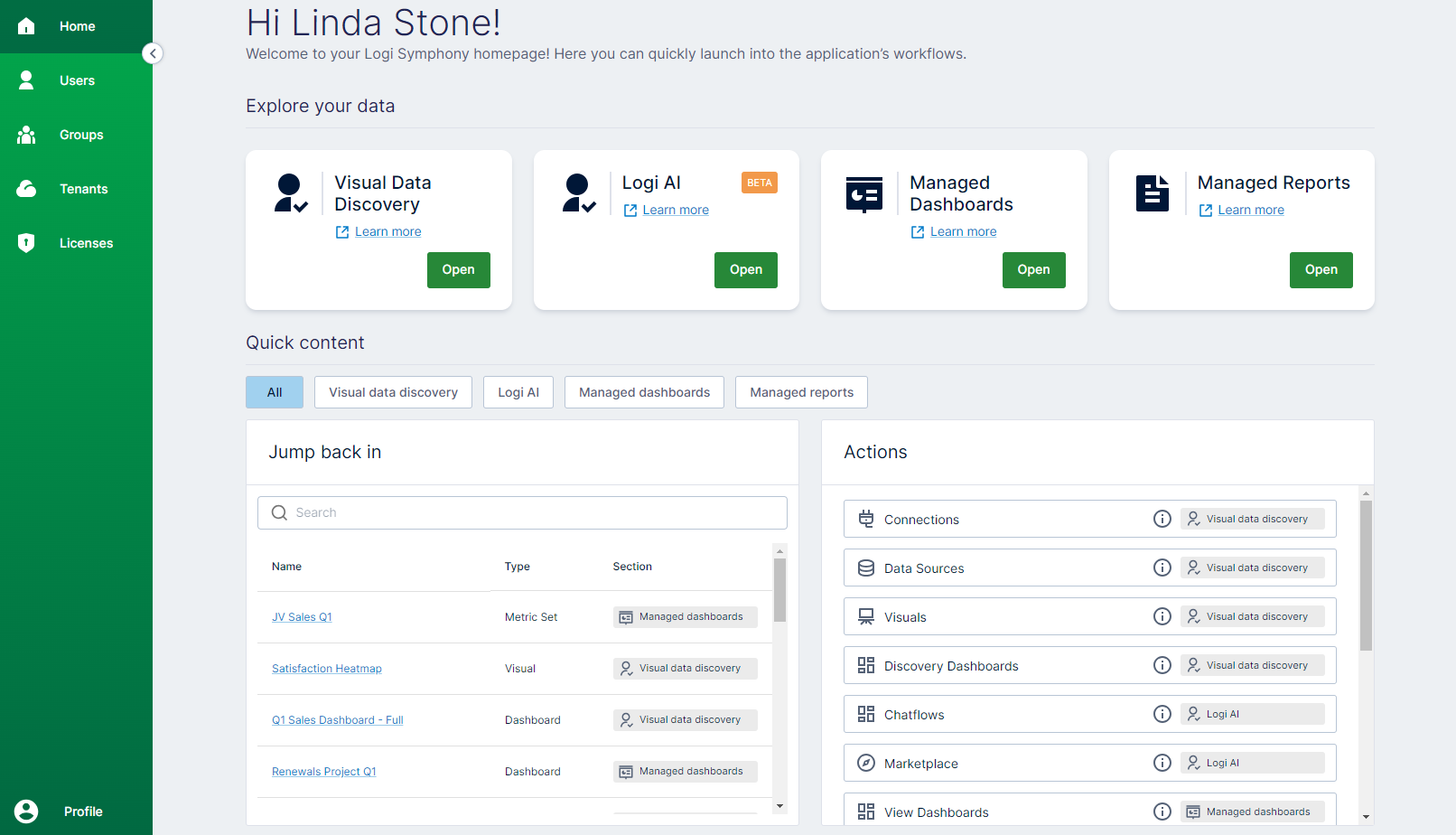
- Explore your data work area
- Visual Data Discovery
- Logi AI
- Managed Dashboards
- Managed Reports
- Quick content work area (filter as All,Visual data discovery, Logi AI, Managed dashboards,Managed reports)
- Jump back in
- Actions
) to return to the home page.
| Link | Description |
|---|---|
| Visual Data Discovery | Select Open: to navigate to the Visual : Data Discoverywork area.
|
| Logi AI(Beta) | Select Open: to navigate to the Logi AIwork area.
|
| Managed Dashboards | Select Open: to navigate to theManaged Dashboards: work area. A work area showing the content for projects you can access opens. Your main menu updates to give you access to navigate to Search:, Home:, All content:, Projects:, Views:, Data:, Business:, Help:, and your Profile:. |
| Managed Reports | Select Open: to navigate to the Managed Reports: work area. A work area showing the content for projects you can access opens. Your main menu updates to give you access to navigate to Search:, Home:, All content:, Projects:, Views:, Data:, Business:, Help:, and your Profile:. |
| Jump back in | Builds you a list of the most recent items you’ve accessed in Symphony.
|
| Actions | Displays a list of actions you can select to perform common tasks. Use a Quick content filter to filter what you see by module. |
 ) and collapse (
  ) arrows or menu icon (
  ) to expand and collapse the main menu.