

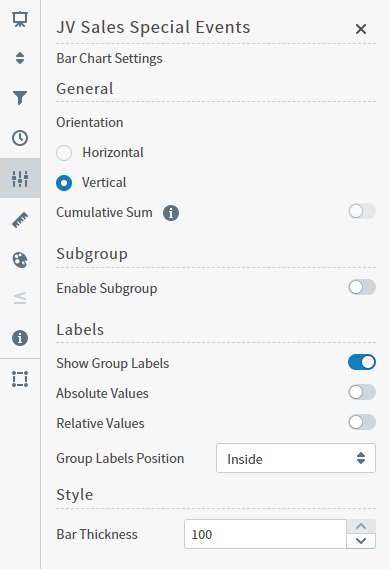
| Setting | Description |
|---|---|
| Orientation | Select Horizontal or Vertical orientation for the bars. |
| Cumulative Sum | When enabled, Composer updates the visual to add the previous value to the next value, and both the original and cumulative value for selected items are displayed as a tool tip. In Bar visuals, this feature is only available when data is grouped by a Time field, and when the Enable Subgroup setting is disabled. |
| Subgroup | Slide on (to the right) the Enable Subgroup: slider to enable a subgroup style. After enabling a subgroup style, select the style for the chart:Clustered Bar Chart:, Stacked Bar Chart:, or 100% Stacked Bar Chart:. If Subgroups are enabled, you can define the visibility and position of their labels. |
| Show Group Labels | Enable to display labels for group values. |
| Absolute Values | Enable to display the data in absolute values. |
| Relative Values | Enable to display the data in relative values. |
| Group Labels Position or Subgroup Labels Position | Select a position option for the group or subgroup labels: Outside horizontal:, Outside diagonal:, or Outside vertical:. |
| Style | Specify the bar thickness for the chart. |