> ## Documentation Index
> Fetch the complete documentation index at: https://insightsoftware-preview.mintlify.site/llms.txt
> Use this file to discover all available pages before exploring further.

# Home Page

export const InlineImage = ({src, href, alt = "", size = "medium", customSize, position = "left", children}) => {
  const sizeClasses = {
    small: "w-6 h-6",
    medium: "w-8 h-8",
    large: "w-12 h-12",
    xlarge: "w-16 h-16"
  };
  const ImageComponent = () => <img src={src} alt={alt} className={customSize ? '' : sizeClasses[size]} style={{
    verticalAlign: 'baseline',
    display: 'inline-block',
    margin: '0',
    padding: '0',
    border: 'none',
    maxHeight: '1em',
    ...customSize ? {
      width: customSize,
      height: customSize
    } : {
      width: '1em',
      height: '1em'
    }
  }} />;
  const imageElement = href ? <a href={href} className="inline-block border-b-0 no-underline">
            <ImageComponent />
        </a> : <ImageComponent />;
  return <>
            {position === "left" && imageElement}
            {position === "left" && " "}
            {children}
            {position === "right" && " "}
            {position === "right" && imageElement}
        </>;
};

<a id="home-page" />

When you [log in](/logi-symphony/symphony/v25/navigate/log_into_the_symphony_ui), the Symphony home page opens. Explore and interact with your Symphony environment, including its dashboards, visuals, and visualizations in a variety of ways.

This topic covers the different options and features available to you.

<a id="view-the-home-page" />

## View the Home Page

Easily access the home page from anywhere in the UI by selecting the **Home** icon ( <InlineImage src="/images/38062511799053_945d37e079.png" />) in the [main menu](/logi-symphony/symphony/v25/navigate/the_symphony_main_menu).

<Frame>
  <img src="https://mintcdn.com/insightsoftware-preview/Jh8ZEiEPZ5D3LGlz/images/38062495009037_40ae3f877c.png?fit=max&auto=format&n=Jh8ZEiEPZ5D3LGlz&q=85&s=cfe15cf38b3c6c9ab270712aefec1590" alt="Use the home page to select an area of Symphony to work in, or jump in quickly to existing content and actions" title="Homepage work area" width="1515" height="904" data-path="images/38062495009037_40ae3f877c.png" />
</Frame>

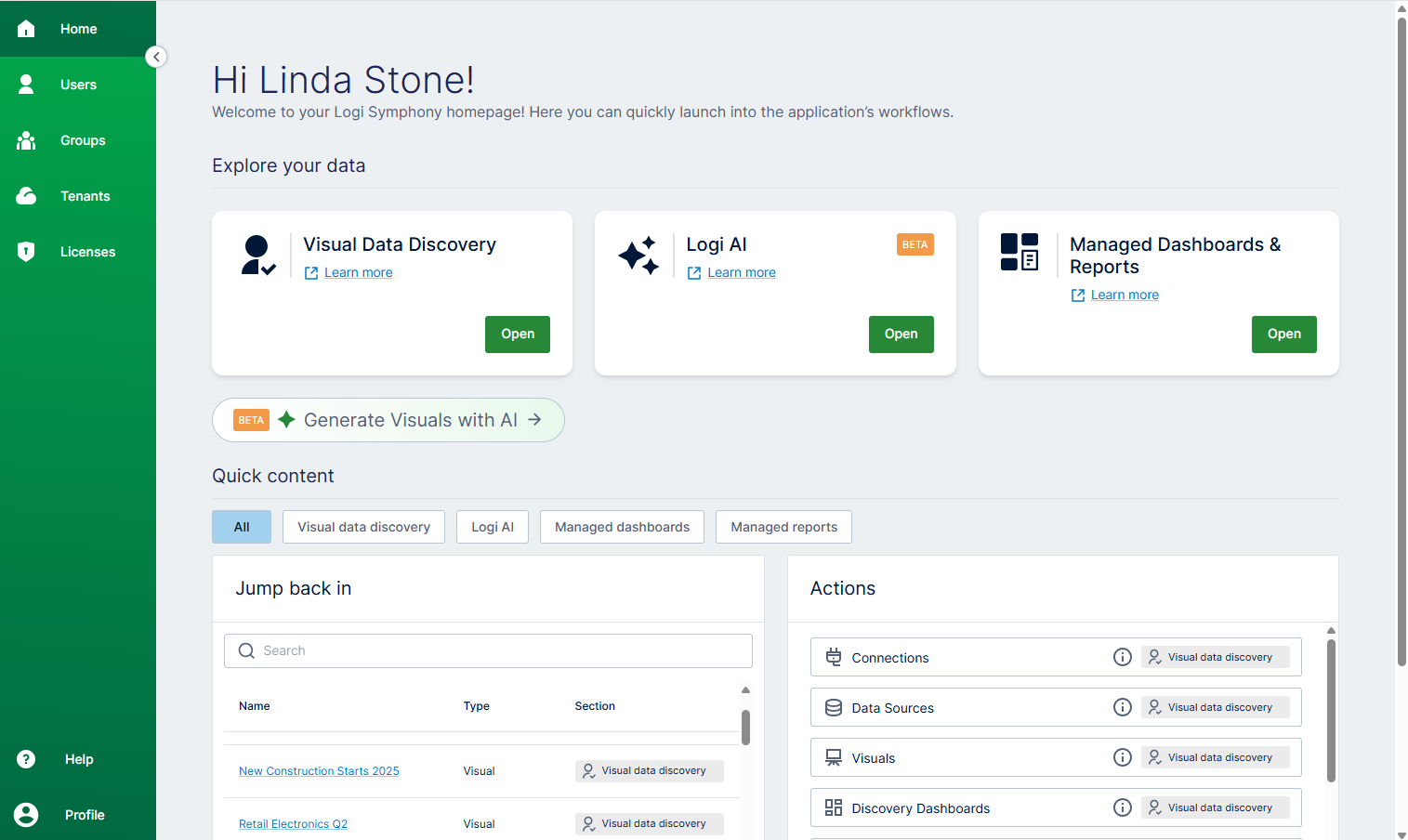
Depending on your application privileges and licensed features, this home page includes selections that let you navigate to the module you need, jump in to the last items you've worked on, or take actions as needed. This includes entry points for:

* **Explore your data** work area

  * Visual Data Discovery

  * Logi AI

  * Managed Dashboards & Reports

* **Quick content** work area (filter as **All** , **Visual data discovery**, Logi AI, **Managed dashboards** , **Managed reports**)

  * Jump back in

  * Actions

The home page does not show information or provide links for resources that your application privileges restricts you from viewing. Select any work area to open it, or **Home** ( <InlineImage src="/images/38062511799053_945d37e079.png" />) to return to the home page.

<table><colgroup><col /><col /></colgroup><thead><tr><th>Link</th><th>Description</th></tr></thead><tbody><tr data-mc-conditions="Logi_Conditions.b-Sym-GS-YES"><td><p>Visual <span class="mc-variable Logi_Variables.SymDataDiscovery variable">Data Discovery</span></p></td><td><p>Select <b>Open</b> to navigate to the <b>Visual </b> [Data Discoverywork area](/logi-symphony/symphony/v25/navigate/use_the_visual_data_discovery_work_area). </p><ul><li><p>For many users, the [Library](https://docs-symphony.zendesk.com/hc/en-us/search?utf8=%E2%9C%93\&amp;query=GS009v25) opens. Your [main menu](https://docs-symphony.zendesk.com/hc/en-us/search?utf8=%E2%9C%93\&amp;query=GS008v25) updates to give you access to navigate to your <b>Sources</b>, the <b>Visual Gallery</b>, <b>Library</b> of dashboards and self service reports, <b>My Tenants</b>, <b>Help</b>, and <b>Profile</b>. </p></li><li><p>Administrators generally have access to <b>All Content</b>, <b>Connections</b>, <b>Data Sources</b>, <b>Visual Gallery</b>, <b>Library</b>, <b>Users and Groups</b>, <b>Tools</b>, <b>My Tenants,</b><b>Help Center</b>, and <b>Profile</b>.</p></li></ul></td></tr><tr data-mc-conditions="Logi_Conditions.b-Sym-GS-YES"><td><p><span class="mc-variable Logi_Variables.Logi_AI variable">Logi AI</span> (Beta)</p></td><td><p>Select <b>Open</b> to navigate to the [Logi AIwork area.](https://docs-symphony.zendesk.com/hc/en-us/search?utf8=%E2%9C%93\&amp;query=GS010v25)</p><ul><li><p>Available only to system administrators, this work area gives you access to existing chatflows, an option to <b>Add New</b> chatflows, search your chatflows, and manage items related to the AI module. </p></li><li><p>Your [main menu](https://docs-symphony.zendesk.com/hc/en-us/search?utf8=%E2%9C%93\&amp;query=GS008v25) updates  to give you access to navigate to <b>Home</b>, <b>Chatflows</b>,  <b>Marketplace</b>, <b>Tools</b>, <b>Assistants</b>, <b>Credentials</b>, <b>Variables</b>, <b>API Keys</b>, and <b>About</b>.</p></li></ul></td></tr><tr><td><p>Managed Dashboards & Reports</p></td><td><p>Select <b>Open</b> to navigate to the[Managed Dashboards & Reportswork area](/logi-symphony/symphony/v25/navigate/use_the_managed_dashboards_and_managed_reports_wor). A work area showing the content and projects you can access  opens. Your [main menu](/logi-symphony/symphony/v25/navigate/the_symphony_main_menu) updates to give you access to navigate to <b>Search</b>, <b>Home</b>, <b>All content</b>, <b>Projects</b>, <b>Views</b>, <b>Data</b>, <b>Business</b>, <b>Help</b>, and your <b>Profile</b>. </p></td></tr><tr><td><p>Jump back in</p></td><td><p>Builds you a list of the most recent items you've accessed in <span class="mc-variable Logi_Variables.SymProductName variable">Symphony</span>. </p><ul><li><p>Select an item to open and view or edit it.</p></li><li><p>Use a Quick content filter to filter what you see by module.</p></li><li><p>Enter a term in the Search field to find items by item name.</p></li></ul></td></tr><tr><td><p>Actions</p></td><td><p>Displays a list of actions you can select to perform common tasks. Use a Quick content filter to filter what you see by module.</p></td></tr></tbody></table>

In addition to these selections, your name as registered in Symphony is shown in this work area. Select the expand ( <InlineImage src="/images/38062540077197_9d9443cc7b.png" />) and collapse ( <InlineImage src="/images/38062545553677_5e012cdfbd.png" />) arrows or menu icon ( <InlineImage src="/images/38062555300365_0b827b495a.png" />) to expand and collapse the [main menu](/logi-symphony/symphony/v25/navigate/the_symphony_main_menu).
