> ## Documentation Index
> Fetch the complete documentation index at: https://insightsoftware-preview.mintlify.site/llms.txt
> Use this file to discover all available pages before exploring further.
# Manage Users in Symphony
Symphony provides the management controls necessary to create users and manage user access of Symphony. Authorization for users to use product features and functions is controlled by the privileges, permissions, and attributes that are assigned to users, [groups](/logi-symphony/symphony/v25/manage_users/manage_user_groups_in_visual_data_discovery), and tenants.
When using SAML single sign-on protocol, users and groups may be automatically provisioned in Symphony (account level synchronization). For more information, see Symphony Supported Authentication Tools.
To add a new user quickly and easily, see [Add New Users](/logi-symphony/symphony/v25/manage_users/add_new_users).
## Edit an Existing User
You can quickly and easily edit a user as an admin by selecting **Users** from the main menu on the [ Symphony home page](/logi-symphony/symphony/v25/navigate/home_page). More advanced changes can be made in the Managed Dashboards module, or the Data Discovery module.
**Edit basic user information as a tenant admin**
1. Log in as a tenant admin.
2. Verify you're in the appropriate tenant (if you are the administrator for multiple tenants) by selecting **My Tenants** from the main menu.
3. Select **Users** from the main menu. The Users work area opens.
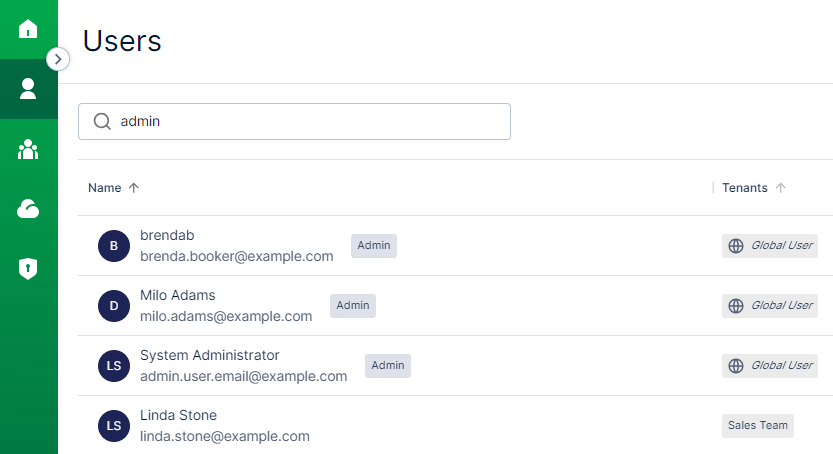
* System admins are listed with an **Admin** tag in the Name column on the main **Users** landing page.
* Only Global Users can be system admins, and show a **Global User** tag in the Tenants column.
* Search for all admins by entering **Admin** in the search box.
 4. Scroll to find an existing user, or use the Search field to find a user.
5. Select **Edit user** from the **Actions** menu for the user you want to update. An Edit user pop up dialog opens.
4. Scroll to find an existing user, or use the Search field to find a user.
5. Select **Edit user** from the **Actions** menu for the user you want to update. An Edit user pop up dialog opens.
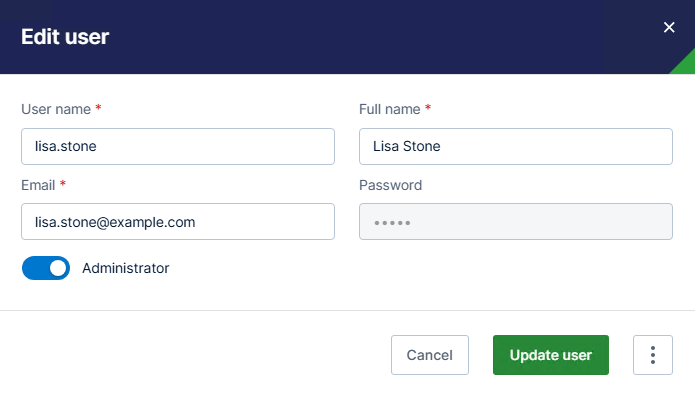 6. Update the **User name** , **Full name** , and **Email** as needed. Optionally, enable or disable **Administrator**.
7. Select **Update user** to save your changes.
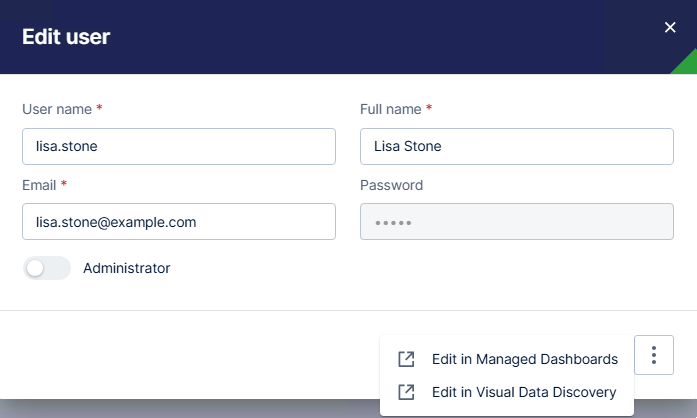
If you need to make other changes to this user, select the action menu, then select a module to edit the user information in that module. Make appropriate changes in Managed Dashboards or in Visual Data Discovery.
6. Update the **User name** , **Full name** , and **Email** as needed. Optionally, enable or disable **Administrator**.
7. Select **Update user** to save your changes.
If you need to make other changes to this user, select the action menu, then select a module to edit the user information in that module. Make appropriate changes in Managed Dashboards or in Visual Data Discovery.
 **Edit basic user information as a system administrator**
1. Log in as a system administrator.
2. Select **Users** from the main menu. The Users work area opens.
3. Scroll to find an existing user, or use the Search field to find a user.
4. Select **Edit user** from the **Actions** menu for the user you want to update. An Edit user pop up dialog opens
**Edit basic user information as a system administrator**
1. Log in as a system administrator.
2. Select **Users** from the main menu. The Users work area opens.
3. Scroll to find an existing user, or use the Search field to find a user.
4. Select **Edit user** from the **Actions** menu for the user you want to update. An Edit user pop up dialog opens
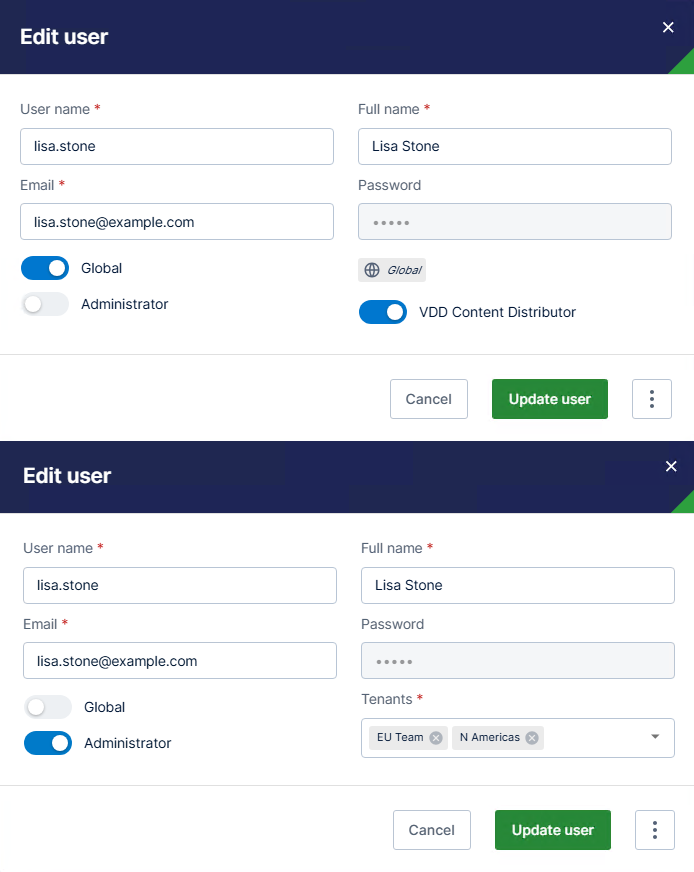 5. Make any changes needed to editable fields, then select **Update user** to save your changes.
If you need to make other changes to this user, select the action menu, then select a module to edit the user information in that module. Make appropriate changes in Managed Dashboards or in Visual Data Discovery.
**Perform advanced user tasks in Managed Dashboards**
Most advanced user tasks are performed in the Managed Dashboards module.
1. Log in as a system admin or tenant admin. If you are logged in as a tenant admin, verify you're in or switch to the appropriate tenant.
2. Select **Users** from the main menu. The Users work area opens.
3. Scroll to find an existing user, or use the Search field to find a user.
4. Select **Edit user** from the **Actions** menu for the user you want to update. An Edit user pop up dialog opens
5. Select the actions menu button, then **Edit in Managed Dashboards**.
6. A list of users opens. Search for the user, or scroll to find the user you want to edit.
7. Select a user, then **Edit** from the **Contextual** menu, then make and **Save** your user changes.
**Perform advanced user tasks in Visual** Data Discovery
Some advanced user tasks are accomplished in the Visual Data Discovery module.
1. Log in as a system admin or tenant admin. If you are logged in as a tenant admin, verify you're in or switch to the appropriate tenant.
2. Select **Users** from the main menu. The Users work area opens.
3. Scroll to find an existing user, or use the Search field to find a user.
4. Select **Edit user** from the **Actions** menu for the user you want to update. An Edit user pop up dialog opens.
5. Select the actions menu button, then **Edit in Visual Data Discovery**.
6. A list of users opens. Search for the user, or scroll to find the user you want to edit.
7. Select a user, then make and **Save** your user changes.
See the following topics:
* [Add New Users](/logi-symphony/symphony/v25/manage_users/add_new_users)
* [Advanced User Management](/logi-symphony/symphony/v25/manage_users/advanced_user_management)
* Symphony User Personas
* [Supplied Users and User Groups](/logi-symphony/symphony/v25/manage_users/supplied_users_and_user_groups)
* [Modify Users](/logi-symphony/symphony/v25/manage_users/modify_users)
* Assign and Remove Users in Tenants
5. Make any changes needed to editable fields, then select **Update user** to save your changes.
If you need to make other changes to this user, select the action menu, then select a module to edit the user information in that module. Make appropriate changes in Managed Dashboards or in Visual Data Discovery.
**Perform advanced user tasks in Managed Dashboards**
Most advanced user tasks are performed in the Managed Dashboards module.
1. Log in as a system admin or tenant admin. If you are logged in as a tenant admin, verify you're in or switch to the appropriate tenant.
2. Select **Users** from the main menu. The Users work area opens.
3. Scroll to find an existing user, or use the Search field to find a user.
4. Select **Edit user** from the **Actions** menu for the user you want to update. An Edit user pop up dialog opens
5. Select the actions menu button, then **Edit in Managed Dashboards**.
6. A list of users opens. Search for the user, or scroll to find the user you want to edit.
7. Select a user, then **Edit** from the **Contextual** menu, then make and **Save** your user changes.
**Perform advanced user tasks in Visual** Data Discovery
Some advanced user tasks are accomplished in the Visual Data Discovery module.
1. Log in as a system admin or tenant admin. If you are logged in as a tenant admin, verify you're in or switch to the appropriate tenant.
2. Select **Users** from the main menu. The Users work area opens.
3. Scroll to find an existing user, or use the Search field to find a user.
4. Select **Edit user** from the **Actions** menu for the user you want to update. An Edit user pop up dialog opens.
5. Select the actions menu button, then **Edit in Visual Data Discovery**.
6. A list of users opens. Search for the user, or scroll to find the user you want to edit.
7. Select a user, then make and **Save** your user changes.
See the following topics:
* [Add New Users](/logi-symphony/symphony/v25/manage_users/add_new_users)
* [Advanced User Management](/logi-symphony/symphony/v25/manage_users/advanced_user_management)
* Symphony User Personas
* [Supplied Users and User Groups](/logi-symphony/symphony/v25/manage_users/supplied_users_and_user_groups)
* [Modify Users](/logi-symphony/symphony/v25/manage_users/modify_users)
* Assign and Remove Users in Tenants