> ## Documentation Index
> Fetch the complete documentation index at: https://insightsoftware-preview.mintlify.site/llms.txt
> Use this file to discover all available pages before exploring further.
# Add New Users
As an admin user or user with appropriate permissions, you can quickly and easily add new users to your Symphony environment.
**Add a new user as a system administrator**
1. Log in to Symphony as a system administrator.
2. Select **Users** from the main menu. The Users work area opens.
3. Select **Create**. A Create user pop up dialog opens.
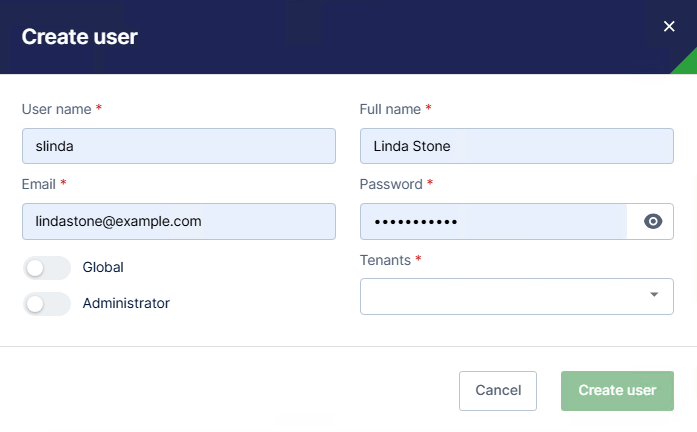
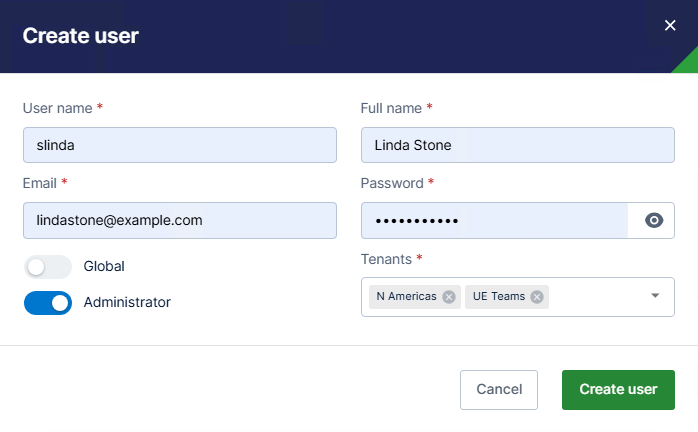 4. Supply values for the **User name** , **Full name** , **Email** , and **Password**.
**Important:** You must select a tenant for a user or add them as a Global User to finish creating the user account.
5. Assign the user to one or more **Tenants** , or enable the **Global User** toggle to make them a global user.
* If you enable the toggle **Global** , the user has access to all global content and Visual Data Discovery content outside of individual tenants. Optionally, enable **VDD Content Distributor** to allow this user to import and share content to users and tenants.
* If you leave the toggle **Global** disabled, you must add the user to at least one tenant.
6. Optionally, enable the toggle **Administrator** to make them an administrator. All administrator users have the same ability to import and share content as members of the Content Distributors group.
* If this is a **Global** user , the new user is a System Administrator.
* If this is a member of one or more **Tenants** , the new user is a tenant administrator for those tenants.
7. Select **Create user** to create the new user. A success message appears, and you are returned to the User work area.
**Create a new user as a tenant administrator**
1. Log in to Symphony as a tenant admin.
2. Verify you're in the appropriate tenant (if you are the administrator for multiple tenants) by selecting **My Tenants** from the main menu.
3. Select **Users** from the main menu. The Users work area opens.
4. Select **Create**. A Create user pop up dialog opens.
4. Supply values for the **User name** , **Full name** , **Email** , and **Password**.
**Important:** You must select a tenant for a user or add them as a Global User to finish creating the user account.
5. Assign the user to one or more **Tenants** , or enable the **Global User** toggle to make them a global user.
* If you enable the toggle **Global** , the user has access to all global content and Visual Data Discovery content outside of individual tenants. Optionally, enable **VDD Content Distributor** to allow this user to import and share content to users and tenants.
* If you leave the toggle **Global** disabled, you must add the user to at least one tenant.
6. Optionally, enable the toggle **Administrator** to make them an administrator. All administrator users have the same ability to import and share content as members of the Content Distributors group.
* If this is a **Global** user , the new user is a System Administrator.
* If this is a member of one or more **Tenants** , the new user is a tenant administrator for those tenants.
7. Select **Create user** to create the new user. A success message appears, and you are returned to the User work area.
**Create a new user as a tenant administrator**
1. Log in to Symphony as a tenant admin.
2. Verify you're in the appropriate tenant (if you are the administrator for multiple tenants) by selecting **My Tenants** from the main menu.
3. Select **Users** from the main menu. The Users work area opens.
4. Select **Create**. A Create user pop up dialog opens.
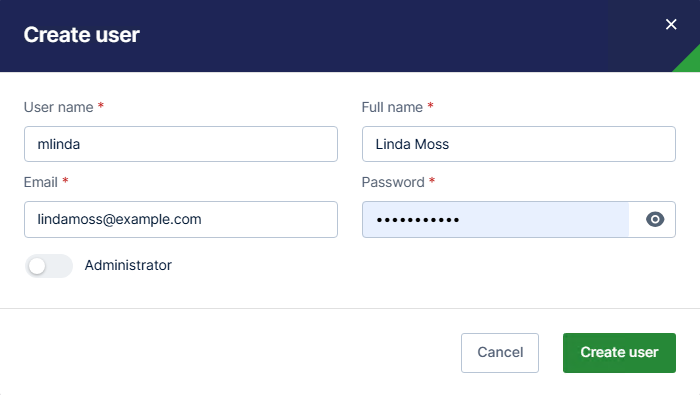 5. Supply values for the **User name** , **Full name** , **Email** , and **Password**.
6. Optionally, enable the toggle **Administrator** to make them an administrator of the tenant you're working in and adding them to.
7. Select **Create user** to create the new user. A success message appears, and you are returned to the User work area.
5. Supply values for the **User name** , **Full name** , **Email** , and **Password**.
6. Optionally, enable the toggle **Administrator** to make them an administrator of the tenant you're working in and adding them to.
7. Select **Create user** to create the new user. A success message appears, and you are returned to the User work area.