> ## Documentation Index
> Fetch the complete documentation index at: https://insightsoftware-preview.mintlify.site/llms.txt
> Use this file to discover all available pages before exploring further.
# Check In, Check Out and Auto Saving
**This applies to:** *Managed Dashboards, Managed Reports*
To facilitate collaboration on projects, every item you can open for editing in Symphony uses a check in / check out model, including data connectors, data cubes, dashboards and more. This allows multiple people to make changes to these items without risk of overwriting or losing any changes. The change history is also saved and can be rolled back if needed.
The workflow is generally as follows:
* Check out or create an item
* Edit the item and apply your changes
* Check in the item so others can see your changes
You might have noticed there is no *Save* button in the Symphony toolbar. That's because Symphony saves your work automatically so you don't need to be worried about losing your changes. You still need to check in your work though so others can see it too.
Related video: [Auto Save and Version Control](https://www.dundas.com/support/videos/auto-save-and-version-control)
## Check Out an Item
Once an item has been checked in, it needs to be checked out to you before you can edit it.
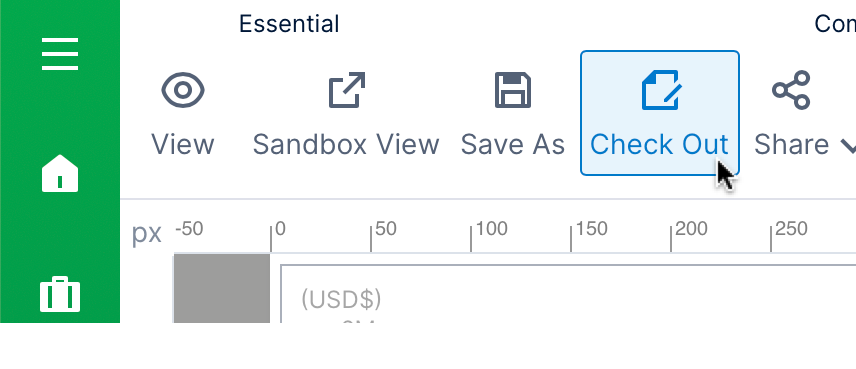
If you open an item from the main menu or elsewhere for editing and most of the screen is disabled or whited out, it has not been checked out to you yet. Click **Check Out** in the toolbar, or just click with a mouse on the whited out content.
 You can also check out an item before opening it from the [main menu](/logi-symphony/symphony/v25/navigate/the_symphony_main_menu), or using the [Explore window](/logi-symphony/symphony/v25/available_visual_types/design_overview) if you have a different item open: right-click (or long-tap) an item and choose **Check Out**.
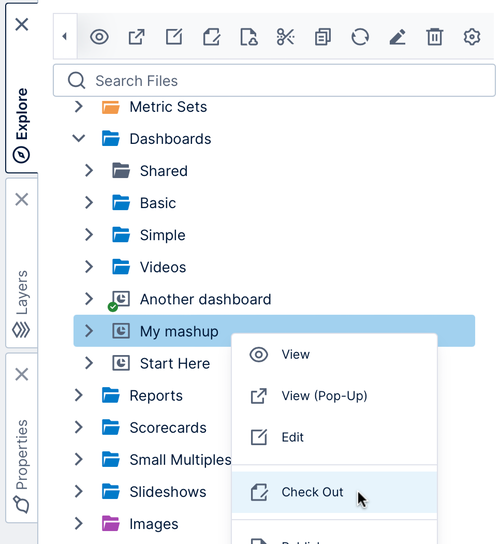 When you check out an item, you are reserving the item for editing for yourself. When others view the item, they will see only the last checked-in version.
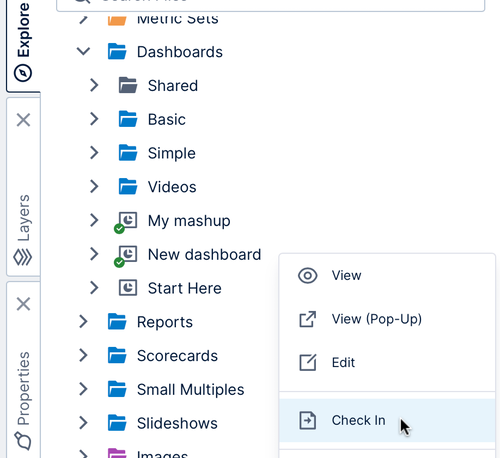
Items checked out to you appear with a green checkmark icon like for *Another dashboard* in the figure above. You can now right-click the item again and choose **Edit** , or click to open the item from the main menu.
**Note:** You can edit items that open in a dialog on the side of a screen directly without checking out first because they have simpler settings, but it's a good idea to check out first if a team member could be editing at the same time so neither of your changes are overwritten.
### Item Is Already Checked Out
If an item is already checked out by another user, the item will appear with a red 'minus' icon.
When you check out an item, you are reserving the item for editing for yourself. When others view the item, they will see only the last checked-in version.
Items checked out to you appear with a green checkmark icon like for *Another dashboard* in the figure above. You can now right-click the item again and choose **Edit** , or click to open the item from the main menu.
**Note:** You can edit items that open in a dialog on the side of a screen directly without checking out first because they have simpler settings, but it's a good idea to check out first if a team member could be editing at the same time so neither of your changes are overwritten.
### Item Is Already Checked Out
If an item is already checked out by another user, the item will appear with a red 'minus' icon.
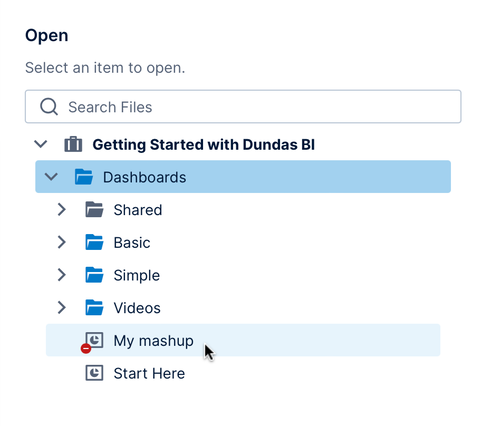 You'll need to wait for the other user to check the item back in or undo their check out.
To find out who the other user is, see **Checked Out To** in the file's read-only properties.
**Note:** If the other user is unavailable, administrators have a Transfer Check Out option in the file's context menu if needed.
## Auto Saving
While editing a dashboard or other full screen item in Symphony, your changes are automatically saved as needed. The status bar at the bottom displays a message whenever Symphony has performed an auto-save operation.
You'll need to wait for the other user to check the item back in or undo their check out.
To find out who the other user is, see **Checked Out To** in the file's read-only properties.
**Note:** If the other user is unavailable, administrators have a Transfer Check Out option in the file's context menu if needed.
## Auto Saving
While editing a dashboard or other full screen item in Symphony, your changes are automatically saved as needed. The status bar at the bottom displays a message whenever Symphony has performed an auto-save operation.
 ## Check In an Item
Check in your changes so that others can see them or check out the item themselves. Newly created items are also not visible to other users before it's checked in the first time.
Click **Check In** in the toolbar while you have the item open for editing. Sometimes this is located under **Share**.
## Check In an Item
Check in your changes so that others can see them or check out the item themselves. Newly created items are also not visible to other users before it's checked in the first time.
Click **Check In** in the toolbar while you have the item open for editing. Sometimes this is located under **Share**.
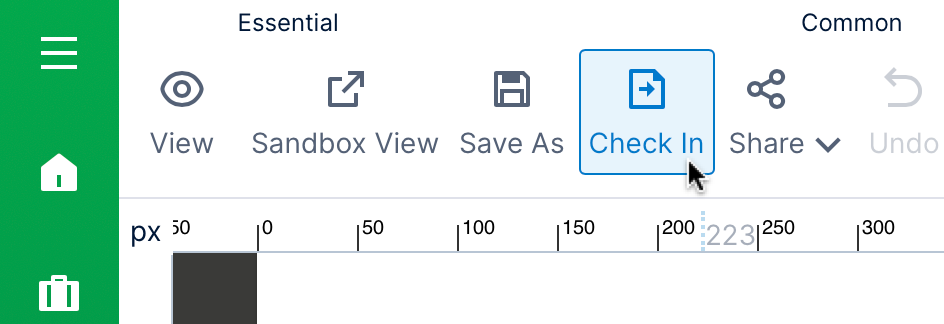 Like when checking out, you can also check in later when the item is no longer open: go to the [main menu](/logi-symphony/symphony/v25/navigate/the_symphony_main_menu) or an [Explore window](/logi-symphony/symphony/v25/available_visual_types/design_overview), right-click (or long-tap) the item, and then choose **Check In**.
 In the *Check In* dialog, optionally enter a comment and then click **Check In** at the bottom.
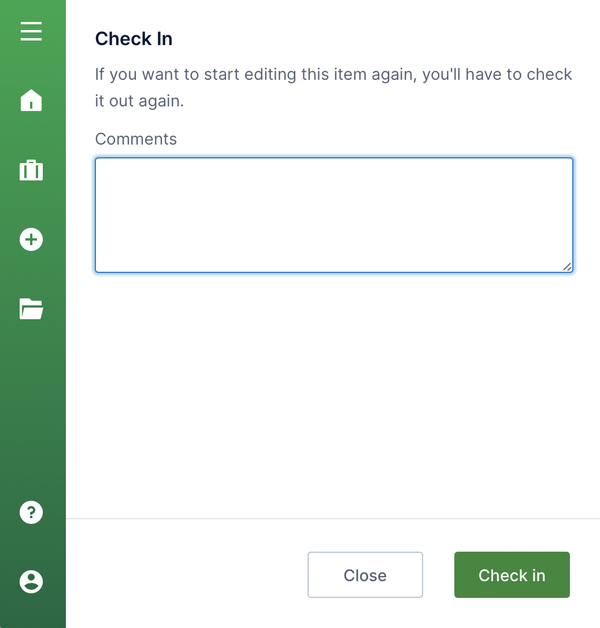 Each time an item is checked in a new entry is recorded in the item's revision history (with your comment) and a new version of the item is created. You can restore a previous version of an item from the *Revision History* dialog. See File and Folder Properties .
## Undo a Check Out
If you aren't happy with the changes you made to an item, you can undo the check out.
This will *discard* all of your changes since the last time it was checked in, and the item won't be checked out to you anymore.
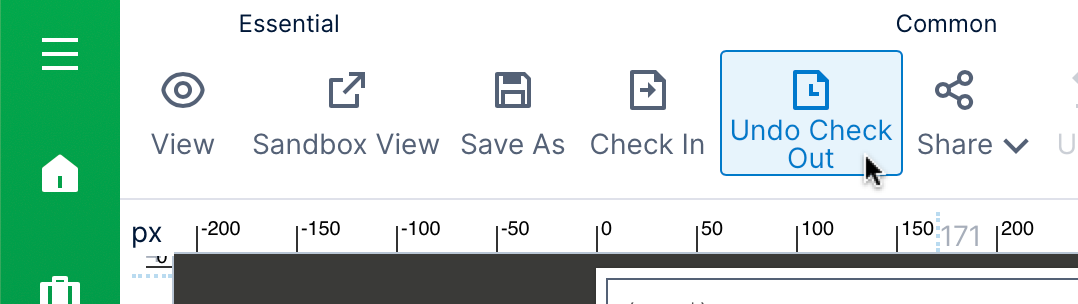
You can undo a check out from the toolbar or the right-click menu.
Each time an item is checked in a new entry is recorded in the item's revision history (with your comment) and a new version of the item is created. You can restore a previous version of an item from the *Revision History* dialog. See File and Folder Properties .
## Undo a Check Out
If you aren't happy with the changes you made to an item, you can undo the check out.
This will *discard* all of your changes since the last time it was checked in, and the item won't be checked out to you anymore.
You can undo a check out from the toolbar or the right-click menu.
 For more information, see:
* Video: [Auto Save and Version Control](https://www.dundas.com/support/videos/auto-save-and-version-control)
* Working With Projects
* [Connect to Data and View it on a Dashboard](/logi-symphony/symphony/v25/navigate/connect_to_data_and_view_it_on_a_dashboard)
* File and Folder Properties
For more information, see:
* Video: [Auto Save and Version Control](https://www.dundas.com/support/videos/auto-save-and-version-control)
* Working With Projects
* [Connect to Data and View it on a Dashboard](/logi-symphony/symphony/v25/navigate/connect_to_data_and_view_it_on_a_dashboard)
* File and Folder Properties