> ## Documentation Index
> Fetch the complete documentation index at: https://insightsoftware-preview.mintlify.site/llms.txt
> Use this file to discover all available pages before exploring further.
# Request And Apply A New License Key
export const InlineImage = ({src, href, alt = "", size = "medium", customSize, position = "left", children}) => {
const sizeClasses = {
small: "w-6 h-6",
medium: "w-8 h-8",
large: "w-12 h-12",
xlarge: "w-16 h-16"
};
const ImageComponent = () => ;
const imageElement = href ? : ;
return <>
{position === "left" && imageElement}
{position === "left" && " "}
{children}
{position === "right" && " "}
{position === "right" && imageElement}
;
};
## Visual Data Discovery Module
This applies to: *Visual Data Discovery*
Note: Use the DevNet License Manager to obtain license keys. These are provided to the person in your organization we term the License POC (Point of Contact). If you don't know who your License POC is, please reach out to your Account Manager.
Note: When a Symphonystandard or trial license expires, only system administrators can log in (to update the license). Regular users are shown a message that the license has expired.
Manage your license keys in one of three ways:
* [Manage License Keys in the UI](#manage-license-keys-in-the-ui)
* [Manage License Keys Using the Licensing API](#manage-license-keys-using-the-licensing-api)
* [Manage License Keys Using Configuration Properties or Environment Variables](#manage-license-keys-using-configuration-properties-or-environment-variables)
## Manage License Keys in the UI
This applies to: *Visual Data Discovery*
Apply a new license key:
1. In the environment for which you need a new license key, log in as a system administrator.
Note: To log in after a trial license has expired, navigate to `https://your-symphony-instance/discovery/login` to log in as a system administrator and access the Visual Data Discovery UI.
2. Select Licenses from the main menu to open a Licenses work area for all modules.
3. Select License details from the Actions menu for the license you want to apply an update for. A Licenses the Manage License work area appears for this license.
Alternatively, select Tools > License from the main menu in Visual Data Discovery. The Manage License work area appears.
This work area shows your current data discovery instance ID and its current expiration date.
Note: If you select Download Current Key, your current license key is downloaded in a `license.key` file.
4. Select Download Instance Token. A `.tok` file is downloaded to your computer.
5. Log into DevNet and visit the License Management page to create a license file. You do this by assigning one of your license keys to a specific instance of Symphonydata discovery, by uploading the `.tok` file from the previous step. DevNet generates a license.key file, and downloads the file to your machine.
6. Browse to find the license key you just downloaded. Then, select Submit. Symphonydata discovery applies the new license to your instance.
## Manage License Keys Using the Licensing API
This applies to: *Visual Data Discovery*
Endpoint
Method
Description
`/api/license`
GET
Returns license information for the instance.
POST
Updates license information for the instance
API documentation is provided with your Symphony installation at this link: `/discovery/swagger-ui.html`.
If a problem occurs, contact your sales or technical support representative.
## Manage License Keys Using Configuration Properties or Environment Variables
This applies to: *Visual Data Discovery*
Add your license keys and installation id to `zoomdata.properties`. Format the variables as shown below:
```
zoomdata.license.key=``
zoomdata.installation.id=``
```
Important: License information provided via configuration properties or environment variables have a higher priority than keys stored in the database previously provided via API or user interface. If you attempt to change the keys using the API in an environment where licensing information from configuration properties or environment variables are in use, Symphonydata discoveryreturns a failure message. Update the license key in the configuration files instead.
## Licenses in Managed Dashboards and Reports Module
This applies to: *Managed Dashboards, Managed Reports*
Once you've applied a valid retail license, the evaluation watermark is removed the next time you log in.
Add a new license key (Licenses work area)
1. Select Licenses from the main menu. A Licenses work area for all modules opens.
2. Select License details from the Actions menu. A Licenses a work area specific to the module you selected, showing the licenses in your environment.
3. Select Add New to add a new license. An Add License work area opens.
4. Add the license information in one of the following ways:
* Drag and drop the license file from your computer or networked location
* Select Choose File to select a file from your computer or networked location
* Copy and paste the license text into the field provided
5. Save your license. The license list is updated with the new entry.
6. Log out, then log back in to view the license update, and if applicable, the removal of the evaluation watermark.
### View Licenses
View your licenses (Licenses work area)
1. Select Licenses from the main menu. A Licenses work area for all modules opens, showing license module name, status, expiration date, and days remaining in the current licensing period.
2. Use the filters to limit the licenses shown by selecting a module, or view all licenses by selecting All.
3. To see more information about a specific license, select License details from the Actions menu.
A Licenses a work area specific to the licensed module opens, showing the licenses in your environment.
4. Take any actions needed for the licenses, or navigate away when you're done viewing the licenses.
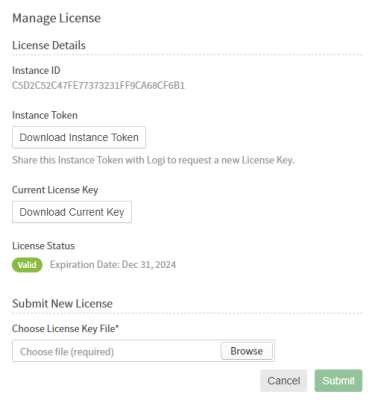 This work area shows your current data discovery instance ID and its current expiration date.